

- What Is the Meta Ads MCP
- What You Need Before Connecting Claude to Meta Ads
- How to Connect Claude with Meta Ads
- How to Check If Claude Is Connected to Meta Ads
- What Can You Do With Claude After Connecting Meta Ads
- Useful Claude Prompts for Meta Ads
- Common Problems When Connecting Claude to Meta Ads
- Is It Safe to Connect Claude to Meta Ads?
- Conclusion
- Frequently Asked Questions
Connecting Claude for Meta Ads means allowing the AI assistant platform to access supported advertising tools and data from your Meta ad account through an MCP connection. In late April 2026, Meta introduced its official Ads AI Connector/Model Context Protocol (MCP) as an open beta, making it easier for advertisers to connect their business account with AI tools.
This connection not only helps users analyze their ad campaign performance and understand insights, but also streamlines further ad tasks using natural language prompts and automates them. However, the feature is still rolling out, so availability and capabilities may vary by account or region.
So, if you are looking for how to connect Claude with Meta Ads, this setup guide is for you. In this blog post, we break down how to use Claude with Meta Ads, along with requirements, valuable prompts, common problems, and effective troubleshooting. So, without further ado, let’s begin!
What Is the Meta Ads MCP
Basically, MCP stands for Model Context Protocol. It is an official server introduced by Meta itself that allows you to connect AI assistant platforms like Claude with your Meta Ads accounts (Facebook/Instagram).
Accordingly, with Meta Ads MCP, you can ask questions directly to Claude about your campaign, ad spend, and performance using simple, natural language, instead of checking each metric manually. Also, depending on the permission you give, the connected Claude can help you analyze campaign results and may perform certain Meta ad tasks for you.
For example, instead of checking multiple reports on Meta Ads Manager, you can simply ask Claude, “Which ad is lacking performance in the last week?” Using the connected Meta data, the AI assistant platform will fetch answers in just a few minutes.
Difference Between Meta’s Official Connector and Third-Party MCP Solutions
Evidently, the official Meta connector MCP is different from any other third-party MCP solutions in terms of security and data handling. Below, we have presented a simple comparison table of both; take a look for a better understanding.
| Factors | Official Meta Ads MCP | Third-Party MCP Solutions |
| Provider | Meta | Independent Company/Developer |
| Connection | Through Meta’s services. | Provider’s MCP server. |
| Data Handling | Adheres to Meta’s infrastructure and permissions. | Entirely depends on the provider’s infrastructure and privacy guidelines. |
| Trust Considerations | High; you are using an official Meta service. | Moderate; requires thorough examination of the provider, permissions, and privacy & security policy. |
| Features | MCP server lets you manage and analyse Meta Ads accounts directly through an AI generative platform using a natural language prompt. | Depends on what the provider has built into the connector. |
What You Need Before Connecting Claude to Meta Ads
Before you learn how to connect Claude with a Meta Ads account, make sure you have the items listed below ready so you can follow the process without any inconvenience.
- Active Claude Account With Supportive Subscription Plan: Remote MCP connectors are available on Claude, Cowork, and Claude Desktop for users on the free, Claude Pro, Max, Team, and Enterprise plans. However, free users are limited to one custom connector.
- Access to a Meta Ad Account: You need a Meta account linked to the ad/business account you want to connect with Claude.
- Correct MCP Server URL: If you are using the official Meta MCP, ensure you are connecting to mcp.facebook.com/ads. Third-party MCP connectors might have different URLs, configuration, and operating requirements.
- Admin Access: Standard user or administrative access to a live Meta Ads Manager account, along with a linked Instagram Business account or Facebook Page.
How to Connect Claude with Meta Ads
📺 Watch the Video Tutorial: Want to see how connectors work in Claude? Watch this video – it shows the connector setup process using Gmail and other apps as examples. Note: The video is in Hindi.
To connect Claude with your Meta Ads account, adhere to the following steps carefully.
Step 1: Open Claude’s Connector Settings
- Log in to your Claude account.
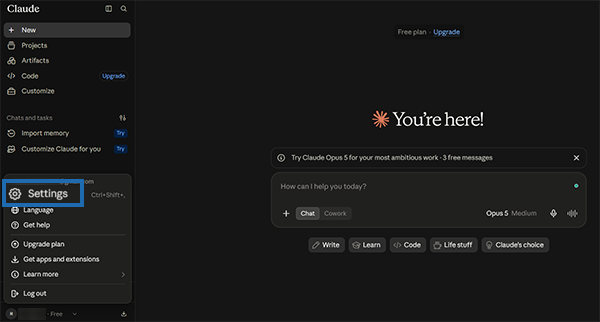
- Go to the left-side menu; click Customize or Settings.
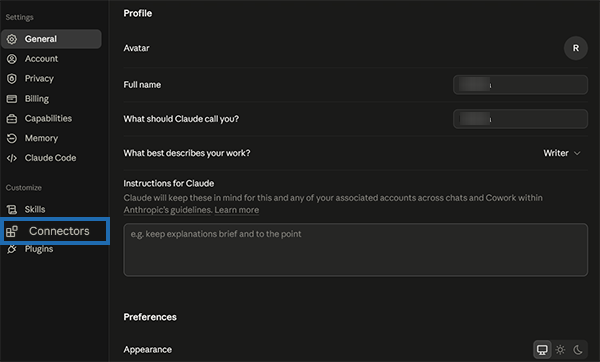
- Select Connectors.
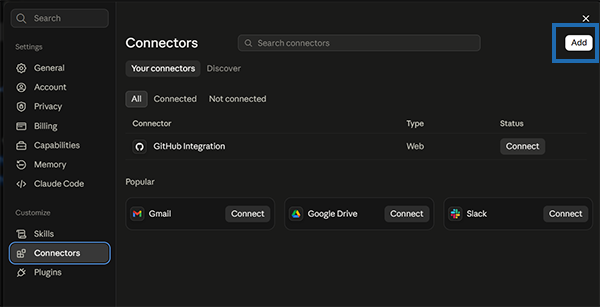
- Click the Add option.
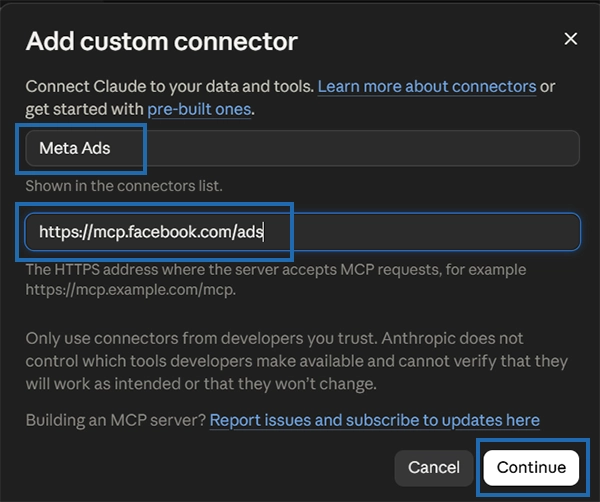
2. Add the Meta Ads MCP URL
- Name the connector (Meta Ads).
- Paste the official URL of the Meta Ads MCP: https://mcp.facebook.com/ads
- Go to the Continue option.
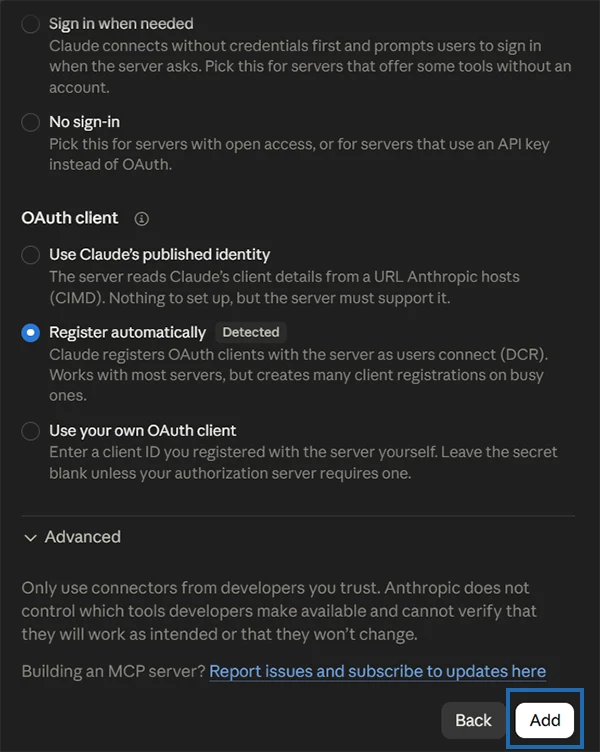
- Scroll down and click the Add option.
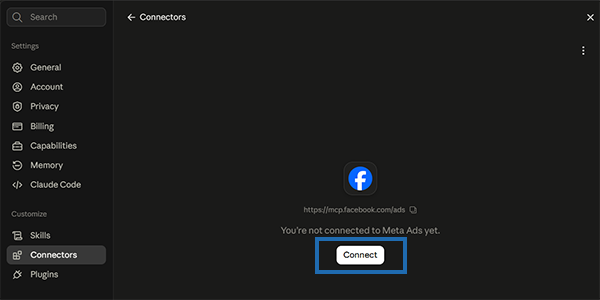
3. Authorize Your Meta Account
- After adding a new Meta connector, click the Connect button.
- When redirected, log in to your Facebook/Meta account.
- Choose the specific business portfolio, Instagram account, or any page you want Claude to access for further tasks.
4. Give Authorization and Use
- Ensure your Meta connector toggle is on.
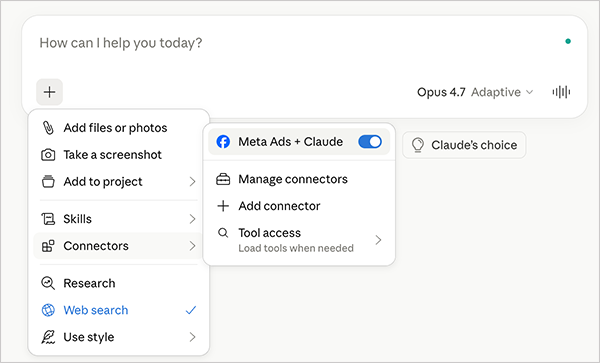
- Go back to the chat, click on “+” to open a new chat in Claude.
- Start using the Meta Ads MCP by using a natural language prompt.
How to Check If Claude Is Connected to Meta Ads
You can easily summarize weekly/monthly ad performance; you can try the following things:
- Check Connector Menu: Open your Claude account >> Go to the left-side menu >> Click on the Customization or Settings option >> Look for the Meta Ads MCP active status.
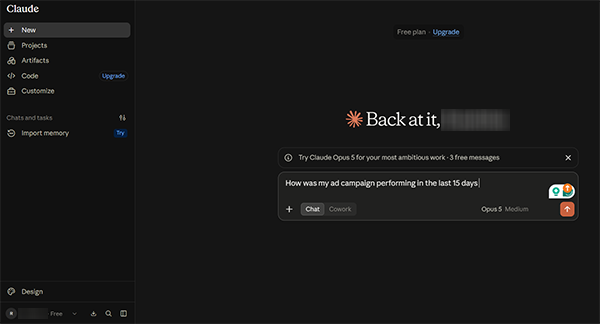
- Run a Prompt Test: Open a new chat and try to ask something to Claude. For example, type “Give me my campaign list,” “How is my last ad performing?” or “What is last week’s result report of my ad campaign?” to check that the Meta MCP is accurately connected to Claude.
- Review Meta Response: If the Meta Ads MCP is active, it will immediately respond to your campaign query and generate relevant answers. Whereas, if the platform fails to respond, it may mean the connector is inactive or unauthenticated.
What Can You Do With Claude After Connecting Meta Ads
Once you have learned how to connect Claude with Meta Ads, the real value comes from what you do with the connection. For instance, instead of manually monitoring everything on Meta Ad Manager, you can ask Claude to analyze your campaign spreadsheet and prepare a detailed yet simple report for your reference.
Besides, you can also do several other tasks with the help of the MCP connection, such as.
1. Analyze Campaign Performance
Claude can help you analyze the entire campaign performance, eliminating the requirement of checking everything manually. You can ask:
- Ad Spend
- Return On Ad Spend
- Cost Per Action/Acquisition
- Click-Through Rate
- Cost Per Mille (Cost Per Thousand Impressions)
- Conversions
- Conversions Value
- Campaign Performance
- Ad-Set Performance
- Ad-Level Performance
2. Find Underperforming Campaigns
Using a simple natural-language prompt, you can ask Claude, “Identify campaigns where spend is increased by more than 20%, but conversions are decreased,” or “Give the list of low-performing ads.” Additionally:
- You can detect sudden ad-set/level performance drops.
- Find unusual conversion, CPM, and CTR changes.
- Identify ads that are draining budget more than required in real time
3. Generate Reports
Instead of spending hours analyzing ad performance and creating reports, ask Claude to do so:
- You can easily summaries Weekly/Monthly ad performance to accurately comprehend.
- Ask Claude for account-level reporting.
- Generate different ad-level performance for comparison.
- Ask the platform to generate each ad performance explanation in natural language.
4. Get Optimization Recommendations
Besides monitoring existing ad campaign performance, you can use Claude to get result-driven optimization recommendations to enhance your ad spend and performance across different platforms. For instance:
- Ask for ad spend budget allocation suggestions.
- Identify wasted spend before it drains your entire budget.
- Find high-performing ads/ad sets to analyze and monitor them consistently.
- Ask why specific ad performance is lacking or keeps changing to make your advertising efforts more effective.
5. Manage Supported Meta Ads Tasks
Claude uses read/write official tools through Meta’s Model Context Protocol (MCP) server to automate users’ Meta Ads tasks, including the following:
- Product Catalogs
- Insights/Benchmarks
- Campaign Management
- Signal/Dataset Diagnostics
- Accounts/Pages
However, Meta has introduced its official Meta Ads MCP as an open beta, which is still in the gradual rollout phase, with limited access for users. Thus, only users with an active Meta account, OAuth authorization, an MCP-compatible client (like the Claude Messages API or Claude Desktop app), and the correct connection endpoint can use all the tools.
Important Tip: According to Jon Loomer, a well-known Meta Ads educator & consultant, you can ask Claude to analyze and create reports on your Meta Ads data. Meanwhile, if the platform recommends or asks permission to make changes in your account, you must be more careful and also review the suggestions to prevent any misconceptions or wrong strategy.
Useful Claude Prompts for Meta Ads
Using specific prompts on Claude can make your Meta Ads analysis more effective. You can type different queries in natural language and get useful insights in a few minutes on the platform. Here, we have mentioned some impactful Claude prompts that you can start with; check them out.
1. For Campaign Performance Optimization
- Show my top 10 ad campaigns based on increased ROAS percentage.
- Which of my advertising campaigns performed best in the last 10 days?
- Compare this month’s ad campaign performance with last month’s metrics.
2. For Budget Analysis
- Find the ad sets that have a higher budget but deliver low conversions, with an explanation.
- Identify potential wasted ad spend.
- Give the 5 best ad budget recommendations.
3. For Performance Diagnosis
- Identify unusual changes in CTR, CPM, CPA, and conversion volume.
- Find ad campaigns where CTR has suddenly dropped in the last 15 days.
- Which ad campaign is performing well compared to last month?
4. For Ads/Ad Sets Reporting
- Give me a weekly summary of ad set performance, including the conversions, CTR, and CPA data.
- Create this month’s Meta Ads performance report and highlight the sudden drop in conversions with important changes.
Bonus Point: To get a more specific performance report, try adding a date range, comparison period, metrics (spend, purchase, or CTA), threshold (like CTA above ₹1,000), and level.
Common Problems When Connecting Claude to Meta Ads
Although the process of connecting Claude with your Meta Ads is straightforward and easy to perform, users often face several problems. Hence, in this section, we have mentioned some common ones along with troubleshooting steps. Take a look.
1. Meta Ads Connector Isn’t Available
Meta officially launched its AI connector MCP as an open beta, but its integration is still in a gradual rollout and is not enabled for all ad accounts. Thus, the Meta Ads MCP is not available for every advertiser.
Troubleshoot:
- Check whether your Meta ad/business account is eligible.
- Ensure that your Claude subscription supports the connector.
- Verify you have authorized Claude to access your Meta Ad account.
2. Claude Can’t See the Ad Account
Usually, a server-side rollout limit, an inactive Model Context Protocol (MCP) server, or permission limits during Facebook authorization prevents Claude from seeing and accessing your ad account.
Troubleshoot:
- Ensure you are using the right Meta profile and login credentials.
- Verify your business/ad account has granted all the required access permissions to Claude.
- Check whether you have selected the right business during authorization.
3. Connection Works but Data Is Missing
An expired Meta user access token, unselected connector permission, or missing permission scope in your chat are common issues that potentially show the Meta Ads MCP status as active, but do not generate data in return on Claude.
Troubleshoot:
- Re-authenticate your connection. Run a test Claude prompt like “List all the Meta Ads accounts you are connected to right now; if you see none, tell me the reason”. If this fails, go to your connector settings or Meta Business Manager integrations and try to reconnect your account.
- Inside your chat window, click on the + menu or go to the connector/tool drawer to make sure the Meta Ads MCP connector toggle is on.
- Disconnect Claude inside your Meta Business Manager (Settings > Integrations > Connected Apps) and re-launch the OAuth authorization.
- If you are facing the missing data error only on the desktop version, completely quit the platform and reopen it. After that, go to Settings >> MCP server and ensure the server is active.
4. Claude Gives an Unexpected Answer
Claude may sometimes generate unusual or inaccurate responses to your query when dealing with unclear or incomplete data requests, ambiguous relative dates, or queries with strict interpretation constraints.
Troubleshoot:
- Verify whether the underlying Meta Ads data is correct.
- Ensure you use a clear and precise prompt based on your query.
- Set clear limitations, like how my ad campaign was performing in the last 15 days.
Remember, do not rely on AI interpretation without checking important campaign decisions, preventing all sorts of future campaign failures or poor implementations.
Is It Safe to Connect Claude to Meta Ads?
Using Claude for a Meta Ads account requires the same caution and precaution as adding any other external service with business authorization. However, the key difference lies in whether you are using the official Meta Ads MCP or a third-party connector.
With the official Meta Ads MCP connector (https://mcp.facebook.com/ads), you connect your ad account with a Meta-managed connection. Whereas, using a third-party connector, the provider’s server may process or route your information between Claude and Meta Ads.
Hence, according to Anthropic’s latest security guidance, we have mentioned some useful precautions that you must be mindful of to safely connect Claude to your Meta Ads account.
- Always use the trustworthy or official Meta MCP.
- Review the requested permissions carefully.
- Limit Claude’s data access where possible.
- Thoroughly examine the tool approval request.
- Disable irrelevant tools.
- Be careful while granting permissions that may make changes in the campaign metrics, like budget allocation.
Conclusion
In short, knowing how to connect Claude with Meta Ads makes it entirely easy to monitor and analyze all your campaign metrics using a simple, natural language prompt. The process for using Claude for Meta Ads involves adding Meta’s official MCP connector, authorizing your account, and selecting the required business ad account.
Evidently, an AI assistant platform like Claude can help you understand your campaign performance, identify underperforming ad sets, analyze wasted ad spend, and other essential aspects. Still, we recommend that you not rely on it entirely, especially when making important changes or making decisions. Always verify all insights; review campaign changes in Meta Ads Manager before taking any action.
Frequently Asked Questions
Can I connect Claude directly to Meta Ads?
Yes, by using the official Meta Ads AI connector, you can directly connect Claude with your Meta Ads account in just a few minutes.
Does Meta have an official MCP for Claude?
Yes, in late April 2026, Meta launched its official Model Context Protocol (MCP) with the primary endpoint https://mcp.facebook.com/ads, allowing Meta Ads accounts to easily connect with AI assistant platforms like Claude.
Can Claude analyze my Meta Ads performance?
Yes, you can ask Claude to analyze your Meta Ads performance by using a natural-language prompt to analyze your campaign performance, compare ad sets, investigate metrics, and summarize advertising results.
Can Claude make changes to my Meta Ads campaigns?
Definitely, Claude can make required changes to your Meta Ads campaigns when connected to the Meta Ads MCP connector, and your permission allows it.
Can I connect multiple Meta ad accounts with Claude?
For sure, you can connect Claude to multiple ad accounts as long as your Meta account has access to those ad accounts and the Meta Ads AI Connector supports it. However, you may need to authorize the relevant business or account during setup.
Can I connect Google Ads and Meta Ads to Claude at the same time?
Yes, using different connectors, you can connect your Google Ads and Meta Ads to Claude at the same time and analyze different ad campaign performance & metrics simultaneously.